Refine writing with document chat
Use Chat with AI for a specific change to your document. A focused instruction makes the intended edit easier to review.
Watch the walkthrough
Section titled “Watch the walkthrough”Read the walkthrough transcript
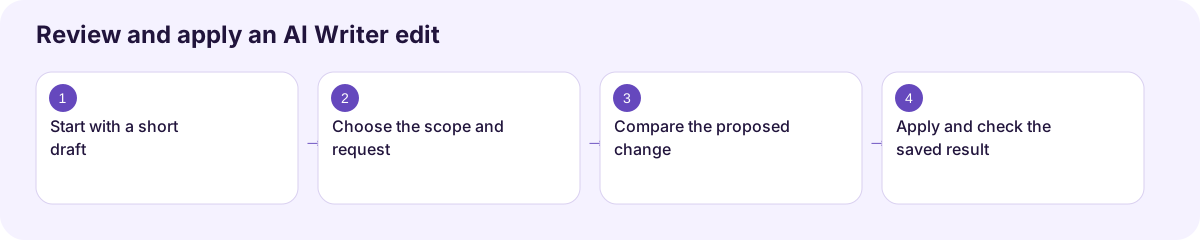
1. Start with a short draft
Let's improve a volunteer invitation in Writer. Start with the draft you want to change. A short example makes it easy to see exactly what the edit does.
2. Choose the scope and request
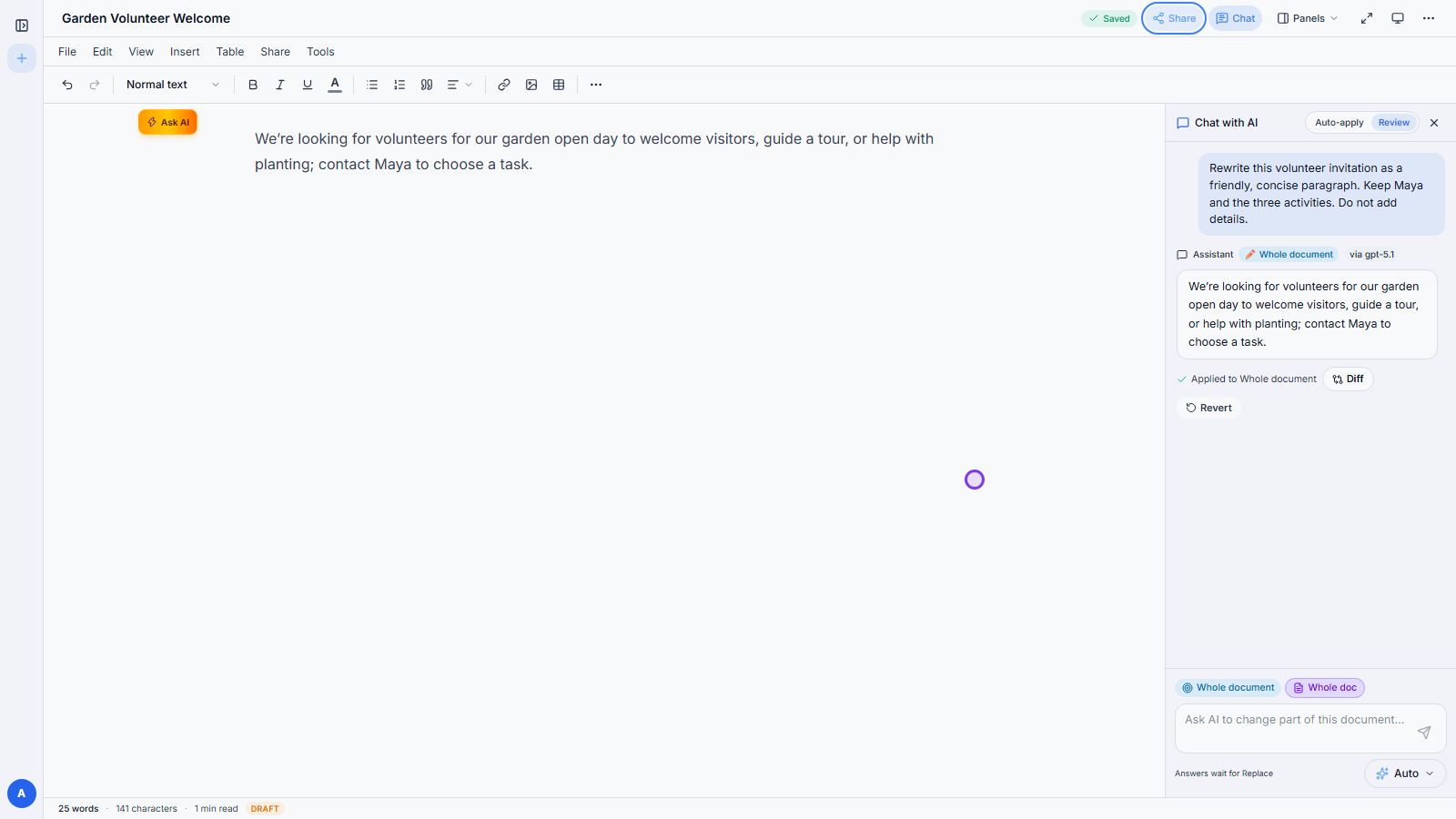
Open Chat with AI, choose Review, and check the scope. We're using Whole doc because this document is just one paragraph. Ask for a friendly rewrite, and name the facts you want to keep.
3. Compare the proposed change
The suggestion is ready, but the original is still there. Choose Diff to compare the added and removed wording. Read it closely: did it keep Maya and all three volunteer activities?
4. Apply and check the saved result
Happy with the edit? Choose Replace. Now check the actual document, not just the suggestion. The Applied label and Saved indicator help confirm the change. You can use Revert if you need to go back.
Download video · Captions · Transcript
Request a change
Section titled “Request a change”- Open the document you want to edit.
- Select the relevant text when you want to target an exact passage.
- Open Chat with AI from the editor.
- Review the targeting controls and choose the intended scope.
- Choose Review if you want to inspect the proposed change, or Auto-apply when you want the workflow to apply its edit directly.
- Enter a clear instruction and choose Send.
- Inspect the affected passage and the surrounding document.
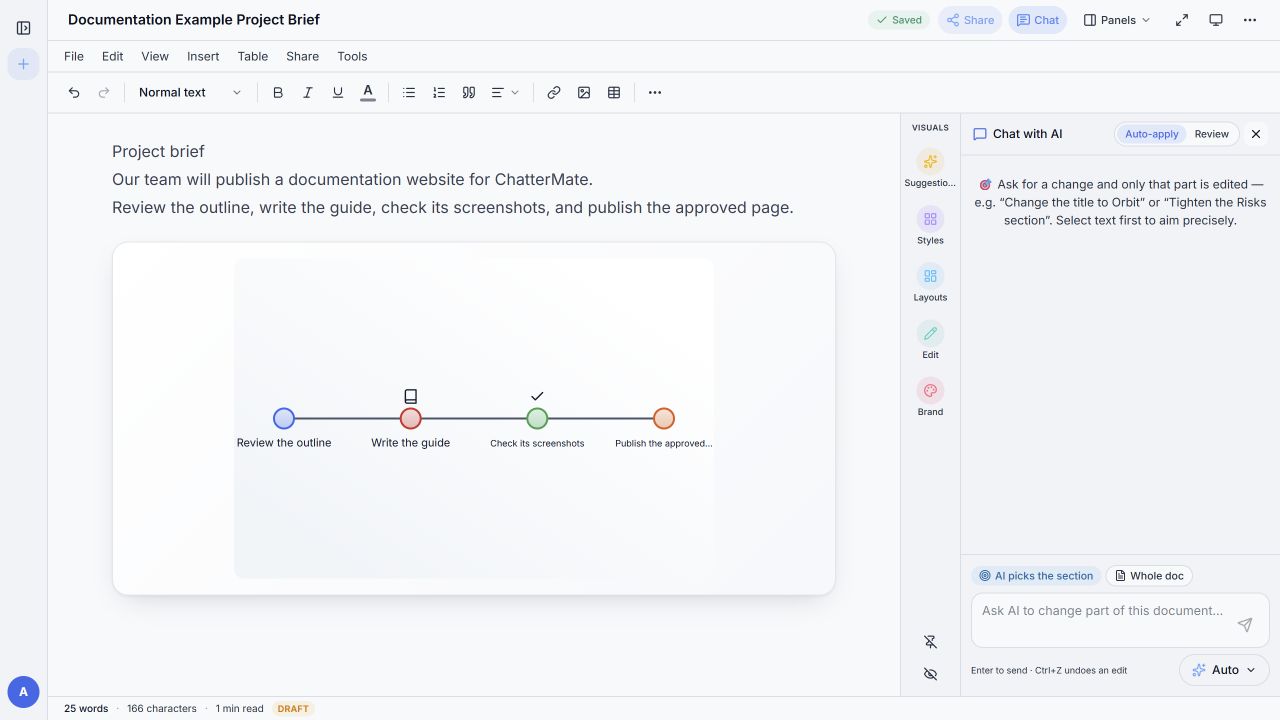
The walkthrough verifies Review → Whole doc → Diff → Replace, and checks the Applied label and Saved indicator. Auto-apply needs its own outcome test.
The local panel displayed AI picks the section, Whole doc, Auto-apply, and Review. Whole-document scope can affect more text; use it only when your request calls for a broad revision.
Useful requests
Section titled “Useful requests”| Goal | Request |
|---|---|
| Clearer writing | Rewrite the selected paragraph for a first-time user |
| Shorter text | Reduce this section to three sentences; preserve the facts |
| Better structure | Turn this paragraph into a numbered procedure |
| Consistent tone | Make the selected section concise and professional |
Review names, numbers, and claims after an AI edit. The local panel states that Ctrl+Z undoes an edit; check the document after undoing to confirm what changed.
Workflow at a glance
Section titled “Workflow at a glance”