Library and generated content2 min read
Choose an output format
Describe the deliverable you need and select an appropriate reply format. Include the intended audience and the source material so the result has useful content as well as the right shape.
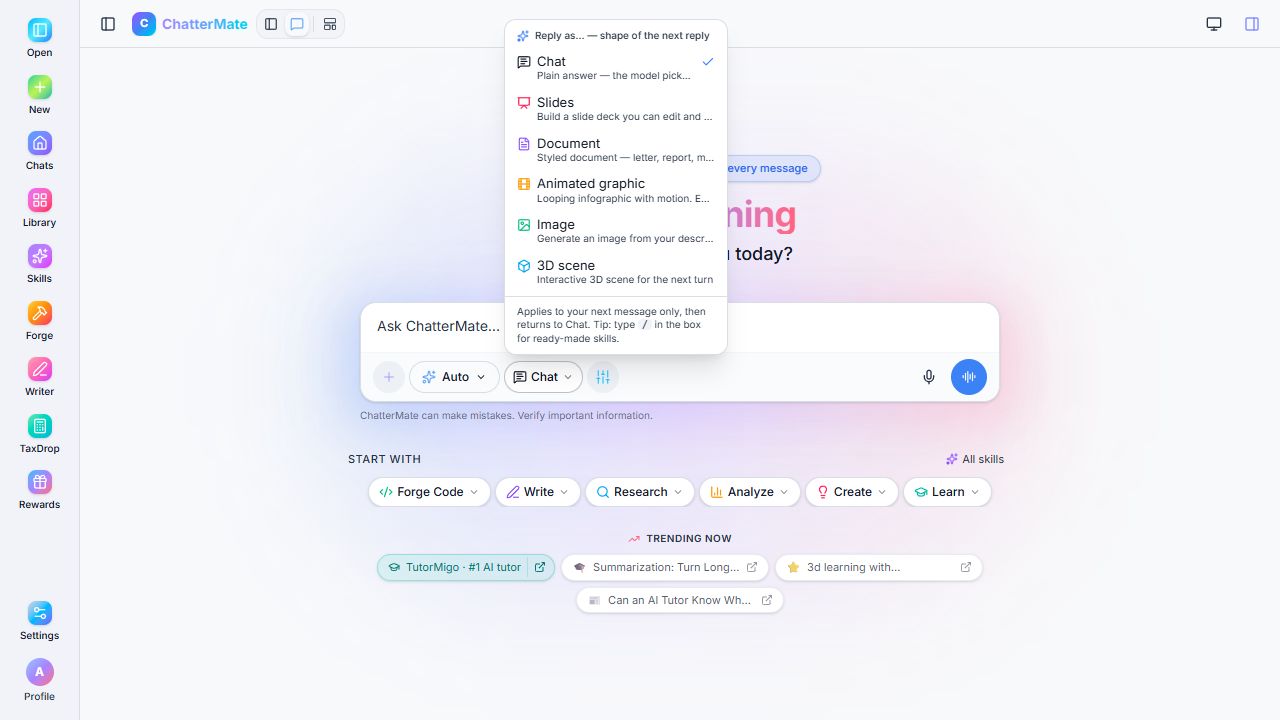
| Format | Example request |
|---|---|
| Chat | Explain this topic in plain language with one example |
| Document | Write a project brief with goals, scope, milestones, and risks |
| Slides | Create a five-slide introduction for new team members |
| Image | Create a clean illustration of a team planning a launch |
| Animated graphic | Show a repeating three-stage process with readable labels |
| 3D scene | Create a simple interactive scene illustrating a concept |
Create and check
Section titled “Create and check”- Open the reply format selector in the composer.
- Choose an available format.
- Enter a complete request and send it.
- Review the result’s content and appearance.
- Use the result’s own export controls when ready.
The menu states that the selection applies to the next message, then returns to Chat. Check the format again when you send another request.
Documents, images, slides, and interactive content need different review. Check factual claims in documents, slide order in decks, labels in graphics, and interactions in scenes. The presence of a format in the menu does not establish every export format or release state.