Manage memory and saved items
Memory stores context used in new conversations. Bookmarks help you return to useful content. They serve different purposes.
Manage memories
Section titled “Manage memories”- Open Settings → Memory.
- Inspect Stored memories and use search where available.
- Add a useful fact in New memory, choose its category, and select Add.
- Review existing entries and edit or remove outdated information.
Example: I prefer explanations with one concrete example. Keep memories useful across conversations rather than storing temporary task details.
The interface offers Auto-extract from recent conversations. Review extracted memories so inaccurate assumptions do not become lasting context. Clear all affects the whole list; inspect its confirmation before proceeding.
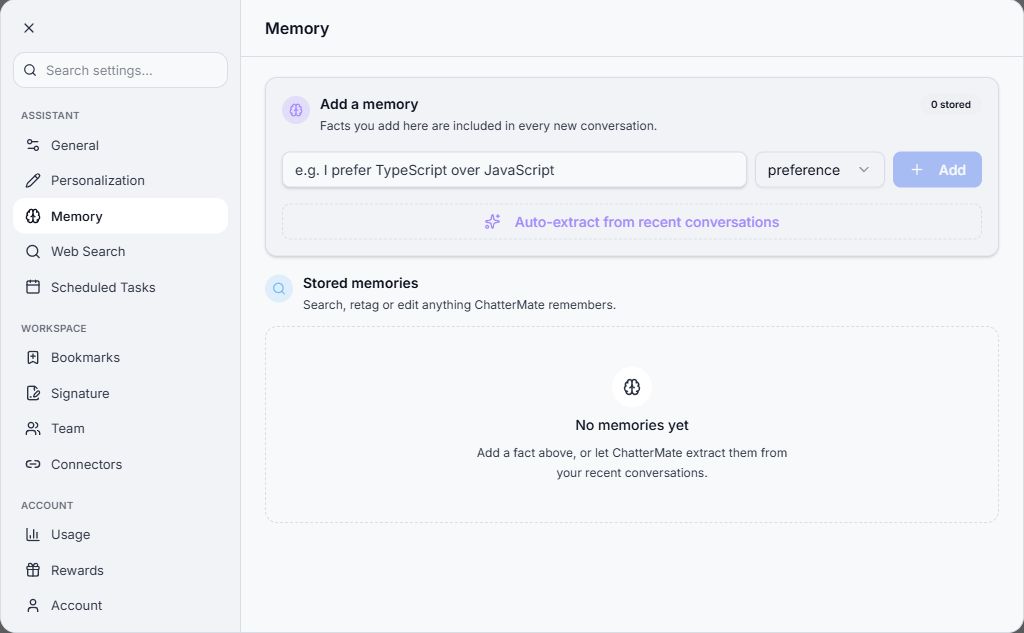
The local example has no stored memories. Review your own entries before making changes.
Find bookmarks
Section titled “Find bookmarks”Use a message’s bookmark control where offered, then open Settings → Bookmarks to return to saved items. A bookmark is a shortcut to useful content; it does not guarantee that the content remains accurate after circumstances change.
When the assistant appears to use outdated context, check memories and personalization. For a task-specific correction, also state the correct context directly in the current conversation.
Related: Personalization.
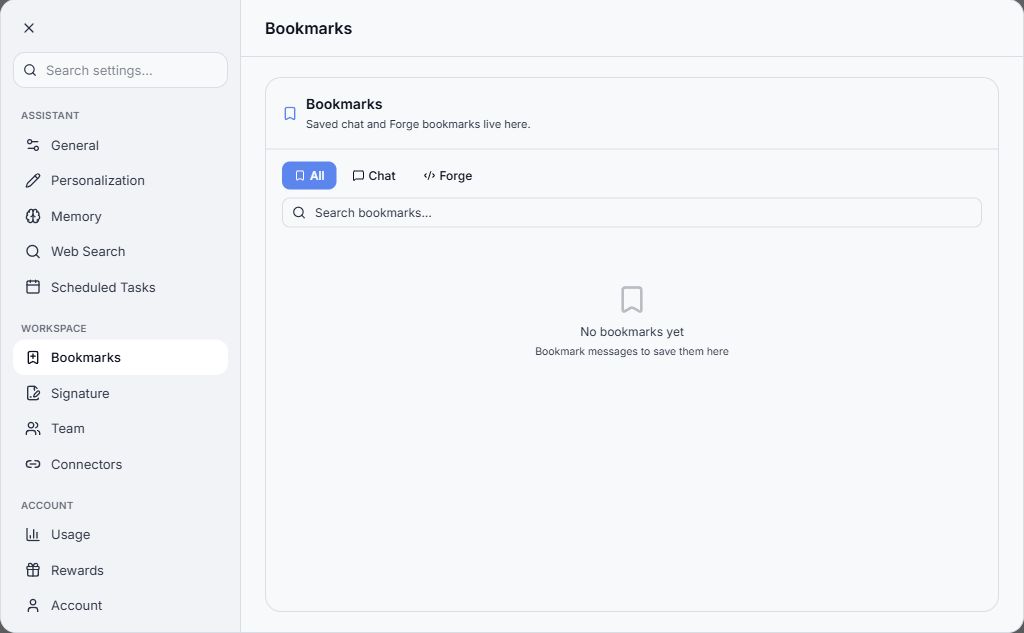
Use the search and available categories to return to saved items.
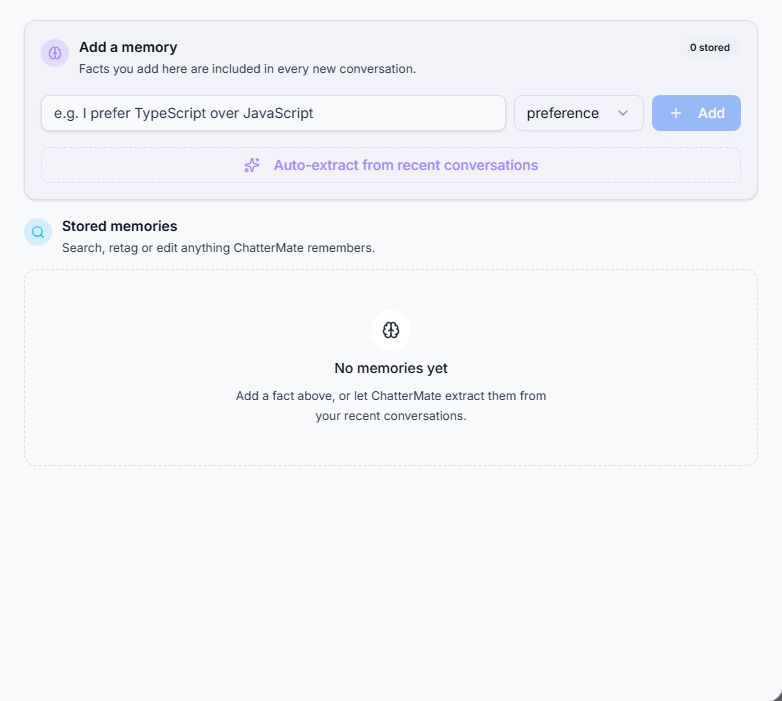
Memory settings with manual entry, extraction, and stored-memory areas.