Explore animated graphics and interactive 3D scenes
Animated graphics and 3D scenes are different outputs. An animation changes over time; a 3D scene can expose interactive camera or object controls. Use the enabled output or turn controls shown in your account.
Request a useful visual
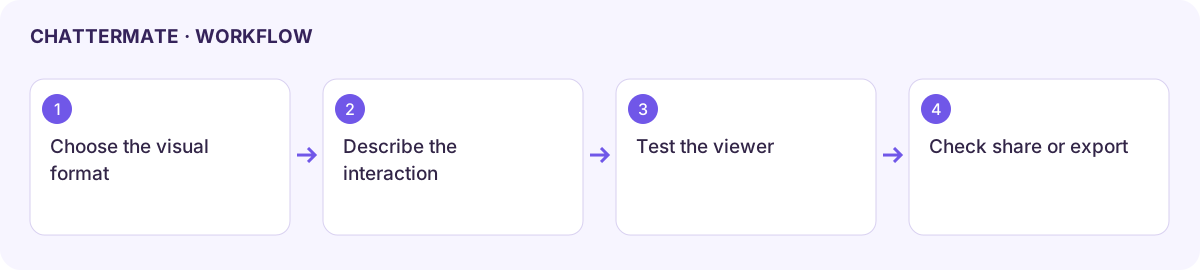
Section titled “Request a useful visual”- Choose the available output and describe the concept, audience, and desired interaction.
- For animation, describe what should move and how that motion explains the idea. For 3D, name the objects, labels, and camera views you need.
- Generate, then open the artifact in Canvas. Allow its viewer to load before testing it.
- Try the displayed playback or scene controls. Inspect labels, object positions, and the explanation alongside the visual.
- Ask for a specific correction and verify the new result. For learning diagrams, check factual accuracy as carefully as appearance.
Check interaction and portability
Section titled “Check interaction and portability”A screenshot does not preserve an interactive scene. Use the artifact’s supported share or export options and test the result in its intended viewer. Do not assume an available image download exports animation, editable 3D geometry, or the full interactive application.
Try keyboard controls where shown and a smaller screen. Use the available text description or simpler static representation if the visual is hard to navigate. Reduce motion through supported preferences when needed.
If the viewer stays empty, check the generation status, reload the saved artifact once, and retain the viewer error. Some scene formats and interactive capabilities depend on the deployment.
Next: choose an output format and share content.
Workflow at a glance
Section titled “Workflow at a glance”