Review scheduled runs and task results
After creating a scheduled task, use the task list to check its schedule, state, and results. Saving the task form does not prove a background run or email delivery succeeded.
Check the task before it runs
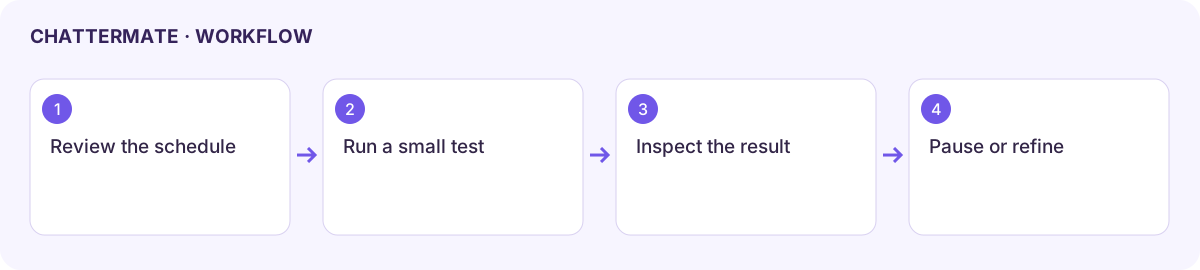
Section titled “Check the task before it runs”- Open Scheduled Tasks in Settings or the available task manager.
- Read the task name and full prompt. Confirm that the selected model, timing, recurrence, and notification settings match the intended work.
- Check the displayed timezone; the reviewed scheduling form uses UTC. Convert the desired local time before saving.
- Inspect the next-run and last-run information when available. A paused task should not be treated as active.
- Use Run now where provided for a small test and inspect the resulting content. A manual test can use allowance and create a separate result.
Manage an existing task
Section titled “Manage an existing task”Use the available edit control to change the prompt or timing, then reread the saved values. Pause a recurring task when you want to stop future runs while retaining its setup. Resume only after checking the next scheduled time. Duplicate creates a separate schedule; make sure both copies are not unintentionally active.
Open the run result or history where available. Check the output, timestamp, and any error. Review the actual notification destination if delivery is part of your task. An empty result or failed status requires investigation rather than assuming the schedule ran successfully.
If a task does not run, check whether it is active, whether the scheduled time has passed in the displayed timezone, and whether the account still has access and allowance. External-service tasks also depend on an active provider connection.
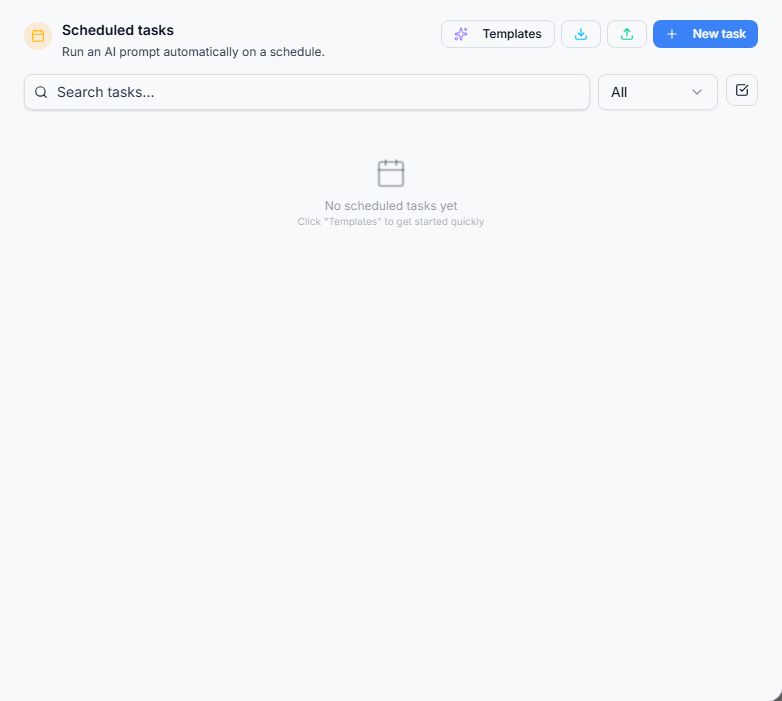
Scheduled Tasks controls and the empty-state view.
Workflow at a glance
Section titled “Workflow at a glance”